

A faster port sounds simple until you plug in the same old mouse, keyboard, printer, and webcam. Thunderbolt 5 speed matters most when your desk already moves heavy data, pushes high-resolution screens, or turns a thin laptop into a serious work machine. For many U.S. buyers, that means video editors, photographers, engineers, gamers, podcasters, and remote workers with a loaded dock. The port is not a magic upgrade for every cable on your desk. It is a wider road, and the cars have to be built for it. That is why a $40 flash drive will not feel reborn, while a fast RAID drive or dual-display dock may feel far less cramped. If you follow practical tech guides before buying new gear, the smart move is to match the port to the job instead of chasing the largest number on a box. Thunderbolt 5 bandwidth helps most when data, display, and power all fight for room at the same time.
Where Thunderbolt 5 Speed Gains Actually Show Up
The biggest mistake shoppers make is treating the new port like a universal speed switch. It is not. A port can offer more room than your device can fill, which is why the same laptop may feel unchanged with one accessory and wildly better with another. The real test is not whether the computer has the logo. The test is whether the connected gear can feed it enough work.
The jump is bandwidth, not magic
Thunderbolt 4 gave many people a clean one-cable desk, but it also made certain limits easier to hit. Add a 4K display, a capture card, an Ethernet line, a fast SSD, and a charging cable through one dock, and the neat setup starts acting less neat. Transfers dip. Displays may need lower refresh settings. Heat rises in the dock. None of this means the older port failed. It means the desk outgrew the pipe.
Thunderbolt 5 doubles the common bidirectional lane from the prior generation and can shift more room toward video when displays need it. That shift matters for people running heavy screens, not for someone syncing a few PDF files. Think of a Dallas photographer moving a 300 GB wedding shoot from an external drive while using a 6K monitor. The gain is not drama. The gain is fewer pauses at the exact moment the workday gets tight.
A non-obvious point sits here: the upgrade often feels better because it removes friction, not because it makes one action look flashy. A file copy may finish faster, yes, but the bigger win is doing that copy while the monitor, dock, network, and card reader stay calm. The smoother desk is the result people notice after a week.
There is also a mental side to bandwidth. When a setup feels close to its limit, people start changing behavior around the machine. They stop copying files during calls. They unplug the backup drive before opening a project. They lower monitor settings they paid to enjoy. A stronger connection gives those habits back. That does not show up cleanly in a spec chart, but it shows up in the workday.
The devices that sit idle will not wake up
Most common home-office accessories do not need much bandwidth. A keyboard, a mouse, a basic webcam, a printer, and a USB microphone barely touch the ceiling of older ports. Plugging them into a newer dock may clean up your desk, but it will not make typing sharper or Zoom audio richer. That is the part ads tend to blur.
You see the benefit when the accessory has its own appetite. Fast external storage, pro video interfaces, high-refresh monitors, capture hardware, and external graphics enclosures can ask for more than older ports can give. A college student in Ohio using one 1080p monitor and cloud apps should keep money in the bank. A small animation team in Los Angeles working off portable SSDs has a much stronger case.
This is why USB-C buying mistakes deserve attention before you shop. USB-C describes the connector shape, not the full set of abilities behind it. Two identical-looking ports can behave nothing alike. Thunderbolt 5 bandwidth only helps when the host, cable, dock, and device all support the stronger path.
The cable is the boring part people skip, and it can ruin the whole setup. A certified short cable may carry the full feature set. An old cable from a drawer may charge a laptop but hold back data or display output. When a setup costs hundreds or thousands of dollars, the cheapest link should not be the one making the decisions.
Why Fast Storage Feels Like the Cleanest Upgrade
Storage is where the upgrade becomes easiest to feel because it has fewer mysteries. You move a folder, watch the clock, and see whether the drive keeps up. There is no monitor setting to confuse the result and no game engine hiding the bottleneck. If your work involves big local files, this is where the new port earns its place first.
External SSD performance finally gets room to breathe
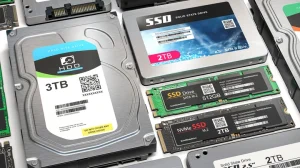
External SSD performance has been stuck between two truths for years. Drives kept getting faster, but many portable setups could not carry that speed back to the laptop without hitting a ceiling. Thunderbolt 5 gives high-end NVMe drives more room, especially when the enclosure uses a modern controller and the cable is rated for the job.
The difference matters for creators who work straight from portable storage. A Nashville videographer editing 4K ProRes files from a bus-powered drive may care less about a headline number and more about scrub speed, proxy creation, and export handoff. If the drive no longer feels like the slowest part of the chain, the whole timeline feels less sticky.
The catch is easy to miss. A cheap SSD inside a premium shell will still act like a cheap SSD. Heat can also pull speeds down during long transfers. So the buyer’s question should not be “Does it say Thunderbolt 5?” It should be “Can this drive hold high write speed after ten minutes of real work?”
There is a second question that matters for small studios: can the drive stay fast when it is nearly full? Many buyers test a new drive fresh out of the box, then blame the port six months later when performance drops. The real cause may be the SSD controller, thermal design, free space, or the project files themselves. External SSD performance is a chain, not a sticker.
Video editors feel the gain before office users do
A normal office worker may open spreadsheets, browser tabs, email, and cloud folders all day without touching the edge of the port. Even a busy remote employee in Chicago may benefit more from a better monitor, chair, or Wi-Fi setup. Speed has to meet a real workload before it matters.
Video editors meet that workload early. So do photographers moving raw catalogs, musicians recording to external drives, and developers pulling large local builds. For them, external SSD performance is not a side detail. It affects how often they wait, how safely they can keep projects portable, and whether a laptop feels like a desktop replacement.
A strange thing happens when storage gets fast enough: the file copy stops being the main story. Organization becomes the bottleneck. People lose time naming folders, checking versions, and cleaning caches. The port can help with throughput, but it cannot fix a messy project system. That is the human limit hiding behind the technical one.
The same idea applies to backup habits. A freelance editor in Portland may delay backups because they take too long at the end of a long day. When transfers become less painful, backups happen more often. That is not as exciting as a benchmark, but it protects paid work. Sometimes the safest upgrade is the one that removes an excuse.
The Display and Docking Setups That Stop Feeling Crowded
Displays are the second place where this generation starts to make sense. A plain laptop screen and one office monitor do not need much. A multi-screen desk with high refresh, high resolution, storage, Ethernet, and charging through one dock tells a different story. That is where one cable starts carrying the weight of a whole workstation.
A multi-monitor setup becomes easier to run from one cable
A multi-monitor setup can strain older docking gear because screens do not sip bandwidth. They drink it all day. Add high resolution, faster refresh, HDR, or color-heavy creative work, and the demand rises fast. Thunderbolt 5 can give more display room while keeping data moving in the opposite direction.
That helps U.S. workers who built serious desks at home after years of remote and hybrid work. A financial analyst in New Jersey may run two large displays, a webcam, Ethernet, an external SSD, and laptop charging from a dock. The upgrade is less about bragging rights and more about avoiding small compromises: one screen stuck at a lower refresh rate, a dock running hot, or a drive slowing when both displays are active.
The non-obvious insight is that the best display win may be stability. People expect speed to feel like motion. Here, it may feel like nothing going wrong. No flicker. No random black screen after waking the laptop. No unplug-replug ritual before the morning call.
Display bandwidth also has a habit of hiding inside settings menus. A monitor may support a high refresh rate, but only through the right port mode. A dock may support two large panels, but not with every mix of cables. The upgrade gives more room, but it does not remove the need to read the dock’s display table before you buy.
Docks matter more than the port on paper
A bad dock can waste a good port. That sounds harsh, but it is the truth buyers learn after the return window closes. The dock decides how bandwidth gets shared, how much power reaches the laptop, how heat gets handled, and which display ports can run at full quality. The computer port opens the door. The dock manages the room.
This is why a laptop docking station guide should come before buying the shiniest hub on Amazon. Check whether the dock supports the display mix you plan to run, not the vague maximum printed on the front. Dual 8K support may sound impressive, but your real need might be two 4K displays at high refresh plus a fast storage port that does not drop when both screens wake.
Thunderbolt 5 bandwidth also changes cable shopping. A short, certified cable can be the quiet hero of the setup. A long mystery cable from a drawer can turn a premium dock into a troubleshooting hobby. Nobody wants to spend an afternoon testing ports when the work was supposed to start at 9 a.m.
Power delivery deserves the same sober reading. The official Thunderbolt technology overview describes support for higher charging ceilings and stronger display setups, but the final result still depends on the laptop and dock. A 16-inch workstation may need more power than a thin ultrabook. Buy the dock for the machine you own, not the largest number the standard can allow.
Why Gamers and Laptop Workstations Get Mixed Results
Gaming and workstation users are the loudest audience for high-bandwidth ports, but they are also the group most likely to feel both joy and limits. External GPUs, capture cards, VR gear, fast drives, and multiple monitors all sound perfect for a bigger pipe. Some of them are. Others still run into the hard truth that an external connection is not the same as a full internal graphics slot.
External GPUs gain headroom but still hit physics
External graphics have always had an awkward promise: desktop-style power from a laptop. Thunderbolt 5 makes that promise more believable, especially compared with older connections. More bandwidth can help the GPU spend less time waiting on the link, and that can matter in games, 3D work, AI experiments, and rendering tasks.
Yet the win is not equal in every case. A high-end desktop GPU inside an enclosure still speaks to the laptop through a narrower path than it would use on a motherboard. Some games lean harder on that path than others. High frame-rate competitive titles may expose the limit sooner than 4K games where the GPU has more work per frame.
A practical example: a gamer in Phoenix with a thin travel laptop may love an external GPU at home because it turns one machine into two. But someone building a full-time gaming desk may still get better value from a desktop tower. The external box is about flexibility first. Raw value comes second.
The counterintuitive lesson is that a stronger external GPU link may matter less as resolution rises. At 4K, the graphics card often carries more of the burden once the frame is in motion. At lower resolutions with higher frame targets, the round trip between laptop and enclosure can become more visible. The same hardware can feel better or worse based on game settings.
Power users win when the whole chain matches
Workstation users benefit most when every part of the chain speaks the same language. A Thunderbolt 5 laptop connected to an older dock and a slow enclosure will not act like a full new system. The cable matters. The dock matters. The controller inside the storage or GPU box matters. The operating system and drivers matter too.
Power delivery can also change the buying decision. Official Thunderbolt material describes support for far higher charging limits than the older generation, which matters for larger laptops that once needed separate power bricks. The cleaner desk is not only cosmetic. Fewer bricks, fewer hot adapters, and fewer cable swaps can make a mobile workstation easier to live with.
Still, the most honest buying rule is simple: upgrade the connection when the connection is your limit. A software developer compiling code on internal storage may gain little. A video editor with dual high-resolution displays, an NVMe RAID, and a capture interface may gain a lot. Same port. Different life.
The best candidates tend to share a pattern. They move large files locally, keep multiple screens active, depend on a dock, and carry the laptop away from the desk. That describes many U.S. creators, engineers, and consultants better than it describes casual users. The port shines when mobility and workstation demand collide.
Conclusion
The smart buyer does not ask whether the new port is faster. That part is settled. The better question is whether your devices can turn that room into less waiting, fewer display compromises, and a cleaner desk. Thunderbolt 5 speed belongs in the upgrade conversation when your workflow already pushes storage, displays, docks, or external graphics hard enough to expose the old ceiling. It is less persuasive for light browsing, basic office work, and simple USB accessories.
For many Americans, the best path is not replacing everything at once. Start with the weakest link. If your drive is slow, buy better storage. If your screens fight the dock, replace the dock. If your laptop lacks the port, wait until the whole system refresh makes sense. The people who benefit most are not chasing specs. They are removing bottlenecks they can already feel. Buy for the workload on your desk, not the number on the cable box.
Frequently Asked Questions
Is Thunderbolt 5 worth it for a normal home office?
Usually no, unless your home office runs several demanding devices through one dock. Email, web apps, video calls, printers, keyboards, and basic monitors do not need the extra room. Spend first on a better display, webcam, chair, or internet setup.
What devices benefit most from Thunderbolt 5?
Fast external SSDs, pro docks, high-resolution displays, external GPU enclosures, capture devices, and creative storage arrays benefit most. These devices can place heavy demand on the port. Basic USB accessories see little or no practical gain.
Does Thunderbolt 5 make an external SSD faster?
It can, but only when the SSD, enclosure, cable, and computer all support the faster path. A slow drive will not become fast because of the port. The largest gains appear with high-end NVMe storage and long file transfers.
Can Thunderbolt 5 replace a desktop PC for creators?
For some creators, yes. A strong laptop with fast storage, a capable dock, and high-resolution displays can feel close to a desktop setup. Heavy 3D artists and full-time editors may still prefer desktop parts for cooling, upgrade room, and raw graphics power.
Is Thunderbolt 5 better than USB4?
It depends on the device, but Thunderbolt certification gives buyers clearer expectations around data, display, and accessory support. USB4 can vary by implementation. For shoppers who hate reading spec sheets, Thunderbolt gear can reduce guesswork.
Do gamers need Thunderbolt 5 for external GPUs?
Some gamers benefit, especially those who want one laptop for travel and a stronger setup at home. Still, an external GPU is not the same as a desktop GPU in a tower. Competitive players chasing maximum frames should compare total cost first.
Will older Thunderbolt devices work with Thunderbolt 5 ports?
Many older Thunderbolt and USB-C devices can work, but they run at their own supported limits. The port does not force old gear to perform like new gear. Check host, cable, dock, and accessory support before assuming full speed.
What should I check before buying a Thunderbolt 5 dock?
Check display support, power delivery, downstream ports, cooling design, cable rating, Ethernet speed, and storage performance. Match the dock to your actual desk, not the largest claim on the product page. The right dock solves problems you already have.