
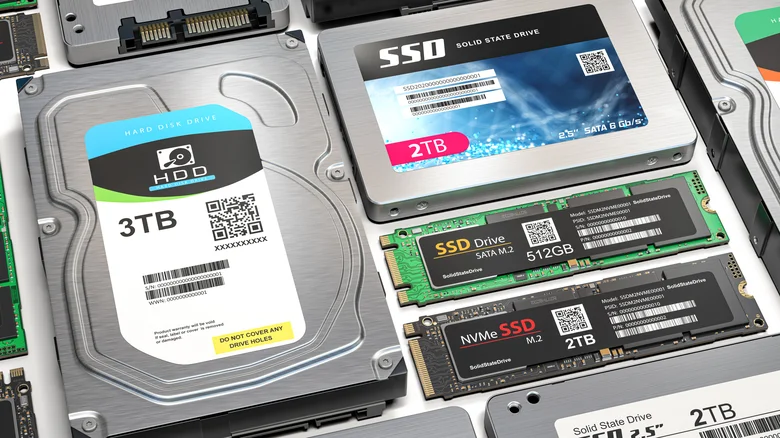
A slow computer rarely feels slow in one single way. It stalls when you open a browser, drags when Windows starts, and makes a simple file search feel older than the machine itself. That is why hard drive performance matters so much for everyday U.S. buyers comparing storage choices for laptops, desktops, gaming PCs, and home backup setups. The short answer is clear: an SSD feels faster for the operating system, apps, games, and active work, while an HDD still makes sense when you need large, lower-cost space for photos, videos, archives, or a home media library. For readers who follow practical tech buying advice through consumer technology coverage, the real decision is not “Which one is better?” It is “Which job does this storage need to do?” A good storage upgrade can make a five-year-old office PC feel usable again, but the wrong one can waste money on speed you barely notice or capacity you outgrow by winter.
Hard Drive Performance Is Only One Part of the Upgrade
Most buyers start with speed because speed is easy to feel. Click an app, wait less. Boot the computer, get working sooner. Still, storage is not one contest with one winner. The better choice depends on the task, the machine, the budget, and how painful failure would be. That tension matters because a $60 SSD and a $90 HDD may solve different problems inside the same American home. One can rescue a tired laptop. The other can hold years of memories without pushing the build over budget. This is why the buyer who asks for the “best drive” often needs a better question first. The answer changes when the files are taxes, games, baby photos, or weekly client video exports.
Why an SSD Makes an Old PC Feel Awake
An SSD has no spinning platter, no moving read head, and no wait for a tiny mechanical arm to find data. That design change sounds small until you live with it. Windows can pull many small files at once, apps can open with less delay, and the whole system feels less tired during daily work. It is the kind of change that makes people blame the old computer less and the old storage more.
Think about a 2018 budget laptop used by a college student in Ohio. It may have a decent processor and enough memory for Google Docs, Zoom, and browser tabs. Yet a mechanical disk can make it feel broken. Swap in a SATA SSD, reinstall the operating system, and the laptop may feel like a different machine without touching the CPU. That matters for families trying to stretch a school computer for another year instead of buying a new one during back-to-school season.
The non-obvious part is that peak speed is not the only reason. Many ads push big transfer numbers, but the daily win is often small-file access. Your computer spends much of its life reading scattered system files, browser cache, app data, thumbnails, updates, and search indexes. An SSD handles that messy work with far less drama. It does not need files lined up neatly to stay responsive.
Why an HDD Still Wins Bulk Storage
An HDD still has a stubborn advantage: large capacity for less money. If you are storing 8 TB of family videos, security camera clips, Plex media, old tax records, or raw photo shoots, the cheapest path is often a large mechanical disk. That does not make it old junk. It makes it a storage warehouse. Warehouses are not glamorous, but nobody builds a house without somewhere to put things.
The mistake is using that warehouse as the front door. An HDD can hold a Steam library, but a large modern game may load maps, textures, and update files in a way that punishes slower random access. It can hold a photo archive, but editing a batch of high-resolution RAW files straight from the disk can make the workflow feel sticky. The files are safe enough sitting there, yet the work around them feels slow.
For many households, the sane setup is split storage. Put Windows, apps, current games, and current projects on an SSD. Put cold files on an HDD. That mix gives you the part of speed you feel and the capacity you need, without pretending one device has to carry every job. It also makes future upgrades less stressful because your active files and deep archive are not tangled together.
Speed Feels Different on a Laptop, Desktop, and Game Console
Once you separate active work from bulk storage, the next question gets sharper: where will the speed show up? A storage device does not act alone. It sits inside a machine with a processor, memory, ports, cables, heat limits, and software habits. The same SSD can feel dramatic in one system and only modest in another. That is why two neighbors can buy the same drive and tell opposite stories about the upgrade. One may be waiting on storage all day, while the other may be waiting on Wi-Fi, memory, or an old processor.
Boot Time and App Launches Change First
The first place most people notice an SSD is the boot process. A computer with a mechanical disk often spends a long minute loading background services, security tools, cloud sync apps, printer helpers, and update agents. An SSD reduces that waiting because it can gather scattered files faster. The login screen appears sooner, but the bigger win is that the computer becomes usable sooner after login.
App launches follow the same pattern. Microsoft Word, Photoshop Elements, QuickBooks, Chrome, and antivirus tools all pull small pieces from many places. The SSD does not make the app smarter. It feeds the app sooner. For a small business owner opening invoices each morning, that can mean fewer tiny pauses that pile up into irritation by lunch.
There is a catch. If your laptop has 4 GB of memory and a weak processor, an SSD will not turn it into a high-end machine. It can remove one bottleneck, which may expose the next one. That is still worth knowing. A storage upgrade is powerful, but it is not magic. The honest test is simple: if the disk light stays busy while everything waits, storage is likely part of the problem.
Large File Transfers Are Only Half the Story
Copying a 200 GB video folder from one device to another sounds like the cleanest test, but it can mislead buyers. A SATA SSD may beat an HDD by a wide margin. A newer NVMe SSD may beat both. Yet once you copy through a slow USB port, a cheap external enclosure, or a crowded home network, the gap may shrink. The slowest link sets the mood.
This is where many shoppers overspend. A parent in Texas moving phone videos to an external backup once a month may not need a premium NVMe drive in a thunderbolt enclosure. A wedding photographer in California editing 4K footage from an active project folder probably does. Same storage family. Different pressure. Paying for speed makes sense when the work repeats often enough to earn the money back.
For consoles, the split is also clear. Newer systems expect SSD speed for many current games, while older titles and archived downloads can sit on external bulk storage. The odd lesson is that the fastest device is not always the best place for every file. Put fast storage where waiting interrupts you. Put cheap space where it does not. A game you play every Friday belongs in the fast lane; a game you might replay at Thanksgiving can sit in the garage.
Longevity Depends on Wear, Heat, and Backup Habits
Speed gets attention, but longevity is where bad assumptions can cost you photos, invoices, schoolwork, and years of small files you forgot to protect. SSDs and HDDs fail in different ways. Neither one deserves blind trust. The best storage plan treats every device as temporary. That sounds pessimistic. It is safer to call it adult ownership. A drive is a working part, not a vault, and every working part deserves an exit plan.
What SSD Lifespan Means in Real Use
SSD lifespan is tied to write endurance, controller quality, spare memory cells, heat, firmware, and workload. Each time data is written, flash memory ages a little. That sounds scary, but everyday home use often writes far less than people imagine. Browsing, school work, streaming, email, and light gaming do not chew through modern SSD endurance fast. A typical family laptop may become outdated before the flash cells become the problem.
The heavier cases are different. Video editing scratch disks, database work, constant game recording, virtual machines, and security camera recording can write huge amounts of data. In those jobs, SSD lifespan becomes a buying factor, not an afterthought. A drive with a higher endurance rating, better cooling, and a decent warranty can be worth the extra cost. Heat deserves special attention in thin laptops and compact desktops because a hot drive can slow itself down and age under stress.
The counterintuitive point: an SSD may give less warning before death than an HDD. A mechanical disk may click, slow down, or throw obvious errors. An SSD can also show warning signs through health tools, but some failures feel sudden. That is why health checks help, yet backups matter more. A clean health report is comfort, not a promise.
What HDD Reliability Looks Like Over Years
HDD reliability depends on model quality, age, heat, vibration, power cycles, handling, and workload. A disk in a calm desktop tower may live for years. A portable external drive tossed into a backpack may have a rougher life because moving parts dislike drops. The same model can have a gentle life in a home office and a harsh one in a dorm room.
Large fleet data helps, but it should be read with care. Backblaze publishes Drive Stats reliability reports from large data center use, which gives buyers a useful window into failure patterns. Still, your living room is not a data center. Your drive may face dust, summer heat, cheap USB power, and accidental unplugging. The lesson is not to copy a data center chart blindly. Use it as a warning that model, workload, and environment all matter.
The hidden enemy is often vibration, not age alone. A single HDD on a desk may be fine. Four or five disks packed into a cheap enclosure can shake each other, run warm, and wear faster. That matters for home NAS users who buy the biggest bargain drives and forget airflow. HDD reliability is partly about the drive, but it is also about the box you put it in. Good screws, decent fans, and a stable shelf are not exciting purchases, but they help.
The Better Buy Depends on Capacity, Budget, and Risk
By now, the choice is less about tribal loyalty and more about matching risk to use. The best storage device for a gamer is not the same as the best one for a small business owner scanning receipts in Florida. Price per terabyte matters, but so does the cost of lost time. So does the cost of losing the file. A cheap part can become expensive when it holds the only copy of something you cannot recreate. A smarter budget leaves room for both the drive and the second copy. Speed feels good on day one; recovery matters on the day something goes wrong.
When a Storage Upgrade Should Be an SSD
An SSD should be the first pick for the system drive in almost every modern laptop or desktop. That is where the operating system lives. It is where apps load, updates unpack, browsers cache files, and your machine does the invisible work that shapes how fast everything feels. If you can upgrade only one storage piece, upgrade the drive you work from.
For a practical U.S. buyer, a 1 TB SSD often hits the sweet spot. It gives enough room for Windows, office apps, photos, several games, and current work without forcing constant cleanup. A 2 TB SSD makes sense for creators, gamers, and people who keep large active files close. Smaller drives can work, but they push more decisions onto the owner.
The surprise is that cheaper SSDs can still be excellent for normal use. You do not always need the fastest NVMe model on the shelf. If your PC only supports SATA, buy a quality SATA SSD and enjoy the jump. If your motherboard supports NVMe, then faster models make sense, but only after capacity and warranty are right. Buy the boring dependable drive before the flashy benchmark champion.
When an HDD Still Belongs in the Plan
An HDD belongs where capacity matters more than instant access. Think local backup, media storage, old project folders, disk images, surveillance archives, and files you want nearby but do not touch daily. It is hard to beat a large HDD when you need many terabytes without draining the budget. This is why desktops and home servers still make room for spinning disks.
This is also where internal links matter for site planning. A buyer reading a home office computer setup guide may need an SSD for the main PC, while someone building a family photo backup plan may need a large HDD plus cloud backup. The storage upgrade is not a single product. It is a small system. Speed, space, and backup rules should be planned together.
One warning: do not treat a backup drive as a backup if it is plugged in all the time and holds the only copy. Ransomware, power surges, theft, fire, and user mistakes can take out both the computer and the attached disk. Keep at least one copy away from the main machine. Quiet habits save more data than fancy labels. The best drive is still a weak plan if the plan has only one copy.
Conclusion
The smartest storage choice is not the flashiest one on a product page. It is the one that removes the bottleneck you feel without creating a new risk you forgot to price. For most U.S. buyers, that means an SSD for the operating system, apps, active games, and current work, with an HDD reserved for large files that do not need instant access. The debate around hard drive performance becomes easier once you stop asking one device to be fast, huge, cheap, and failure-proof at the same time. SSD lifespan matters most under heavy writes, while HDD reliability depends on model choice, handling, heat, and vibration. Backups decide whether either failure becomes a bad afternoon or a personal disaster. Buy speed where waiting costs you focus. Buy capacity where patience is cheap. Then protect the files you would hate to explain losing. That is the storage choice that still feels smart after the receipt, the warranty, and the first scare.
Frequently Asked Questions
Is an SSD worth it for an older laptop?
Yes, an SSD is often the best upgrade for an older laptop if the processor and memory are still usable. It can cut boot delays, reduce app launch waits, and make daily tasks smoother. Check the laptop’s drive type before buying.
How long does an SSD usually last for home use?
Many home users can run an SSD for years without reaching its write limit. The risk rises with video editing, constant recording, virtual machines, or heavy database work. SSD lifespan depends on workload, cooling, controller quality, and backup habits.
Is an HDD better for storing photos and videos?
Yes, an HDD can be a smart choice for large photo and video archives because it offers more space per dollar. It is not ideal as the only copy. Use a second local copy or cloud backup for files you cannot replace.
Which is better for gaming, SSD or HDD?
An SSD is better for current games because it reduces loading time and handles asset streaming better. An HDD can still store older games or titles you play less often. Newer consoles and some PC games expect SSD-level speed.
Does an SSD make internet browsing faster?
It can make the browser open faster and handle cache files with less delay, but it will not increase your internet speed. Slow Wi-Fi, weak broadband, too many extensions, or low memory can still make browsing feel sluggish.
What size SSD should most people buy?
A 1 TB SSD fits most everyday users because it leaves room for the operating system, apps, documents, photos, and several games. Heavy creators and gamers may prefer 2 TB. A smaller 500 GB drive can work with clean file habits.
Are external hard drives safe for backup?
They are useful, but they are not foolproof. Drops, bad cables, power issues, and accidental deletion can ruin a backup plan. For safer storage, keep one copy disconnected or off-site and check the drive from time to time.
Should I replace my HDD before it fails?
Yes, replace it early if it is making odd sounds, showing errors, slowing down, or holding files you cannot lose. HDD reliability can drop with heat, vibration, and age. Move key files first, then decide whether the drive still has light-duty use.